




PunkBuster is designed to keep itself up to date using our proprietary auto-update system. For cases where
the auto-update fails, we have created a utility called PBSetup.
There are two major components to the PunkBuster system: the PunkBuster Server (runs on game servers) and the PunkBuster
Client (runs on players' playing machines while they play the game). Both components are designed to automatically keep
themselves up to date with the latest versions of PunkBuster. The PB Server software routinely checks with the master PB Servers
and downloads new updates over the Internet when they become available and then distributes the new versions to connected
PB Clients when players running an old version connect to the server.
When PB is not able to auto-update, various error messages are displayed. For PB Server Admins, messages are
displayed to all players when a player joins who has a newer version of PB than what is currently running on the PB Server.
Also, PB Servers running old versions will not be able to detect and deal with all of the latest versions of cheat/hack
software. For players of the games, when PB can't keep itself up to date, they will be removed (kicked) from PB Servers
and may see one of a variety of messages ... "Distress", "Technical Problem loading ...", or "Update Timeout".
In virtually every case where PB cannot keep itself up to date, a firewall or some type of security software
is blocking communication with the master PB Servers. For users who are comfortable configuring their firewall/router or
security software, port number information can be found in the FAQ section for each game we support here on our website.
If this issue can be resolved, then PB will be able to auto-update and function properly the way it was designed and
the use of PBSetup is not necessary.
For users who need or desire to use PBSetup to manually update PunkBuster, PBSetup download links
for Windows, Linux and Mac OSX are provided below. PBSetup does not modify the Windows registry. For best
results, users should create a folder on the hard drive to hold PBSetup and the various files that it
will create and use during operation. PBSetup should be downloaded directly into the folder or moved into
the folder after downloading to the desktop but before running PBSetup for the first time. The easiest way
to create a folder is to "right click" on the desktop and choose New|Folder from the pop-up menu and then
type in a folder name such as PBSetup and press the Enter key.
When PBSetup is run for the first time, the End User License Agreement (EULA) for PunkBuster software
is displayed. Please read and understand our EULA before deciding whether or not to accept it and proceed.
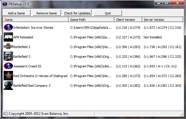
Below are displayed sample screenshots and instructions for using PBSetup.

Click the "Add a Game" button to bring up the game selection screen. Use the dropdown menu to select a game.
In most cases, PBSetup will then auto-detect the path to the appropriate PB folder. If not, use the browse button
to tell PBSetup where the game is installed on the computer.

After one or more games have been added, click on the "Check for Updates" button to have PBSetup check for
new updates, install PB, and/or repair PB files that may be missing or corrupted.
For any issues related to PBSetup, please communicate directly with our staff using our
web-based trouble-ticket
system.